


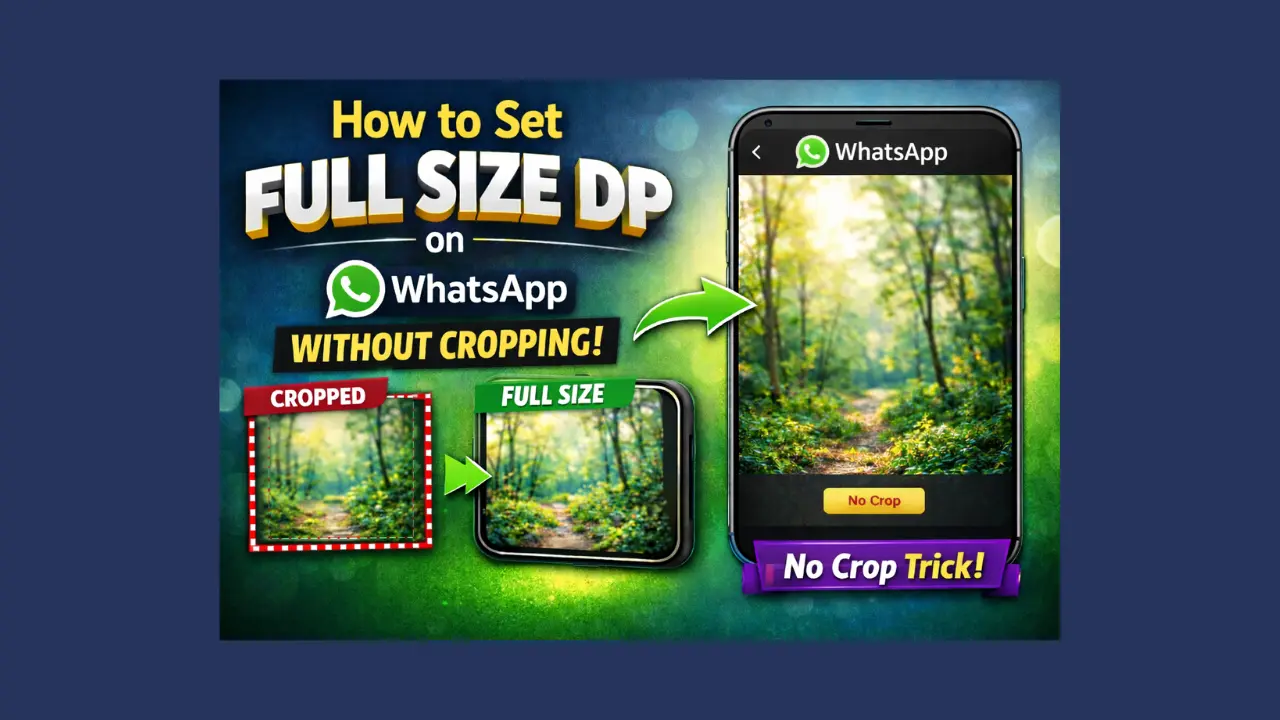
For a long time, my WhatsApp profile picture felt like a small frustration I kept ignoring. Every time I tried to upload a photo I actually liked, WhatsApp would quietly push me to crop it. Faces got cut. Backgrounds disappeared. Sometimes even my head felt too close to the edge. It sounds small, but when a picture is the first thing people see, it matters. That is where How to Set Full Size DP on WhatsApp Without Cropping slowly became something I wanted to figure out, not urgently, just out of mild annoyance.
One evening, while fixing an old photo, I came across Snap Pic Collage Photo Editor. I was not looking for a “solution.” I just wanted my picture to stay the way it was.
Table of Contents
Why WhatsApp Forces You to Crop Your DP?
WhatsApp likes things neat. Square, to be specific. The app uses a 1:1 ratio for profile pictures, which means anything taller or wider feels like a problem to it. Most phone photos are vertical rectangles. They breathe. WhatsApp does not give them that space.
So when you upload a normal photo, WhatsApp asks you to zoom, drag, and cut. It does not care what you lose in the process. It just wants symmetry. Over time, you stop noticing it. You crop without thinking. Still, something about losing parts of a photo always feels slightly wrong.
What is Snap Pic Collage Photo Editor?
Snap Pic Collage Photo Editor is one of those apps you find while scrolling, not expecting much. You can search for it on the Play Store by typing “Snap Pic Collage Photo Editor,” and it shows up quietly among other editing apps.
The first time I opened it, nothing dramatic happened. No loud welcome screen. No pressure. Just options sitting there, waiting. It felt more like a toolbox than a showcase. That calm feeling matters when you are editing something personal.
Amazing Features of Snap Pic for WhatsApp DP
No Crop Feature
This is the feature that actually solves the problem. Instead of forcing your photo into a square, Snap Pic lets the full image stay untouched. Your face stays centered. Your shoulders remain visible. Nothing feels squeezed. It is strange how relieving that feels after years of cropping without choice.
Blur Background Effects
When the photo does not fit the square, Snap Pic fills the extra space with a soft blur. Not the dramatic kind. Just enough to keep focus on you. Sometimes the blur looks clean. Other times, you might adjust it once or twice to feel right. It is not perfect, but it feels natural.
Creative Collage Maker
This one surprised me. If you want more than one photo in your DP, Snap Pic lets you combine them gently. It does not scream “collage.” It just places moments together. Some layouts feel unnecessary, but a few work beautifully when chosen slowly.
High-Resolution Output
In 2026, blurry pictures stand out immediately. Snap Pic keeps the photo sharp when saved. There is no sudden drop in quality, which is something I have seen happen in other apps. The photo looks like itself, just framed better.
How to Create Full Size DP using Snap Pic (Step-by-Step)
When I used Snap Pic, the process felt less like following steps and more like moving through choices. You open the app and select a photo that already feels right to you. That part matters.
Then you tap on the No Crop option and play around with the background for a moment. You move it a little. Stop. Move again. Add a filter if it feels right, or skip it if the photo already says enough.
Saving the image in high quality feels like a small decision, but it makes a difference later. Finally, setting it as your WhatsApp DP feels oddly satisfying. The photo fits, and I just leave it like that.
Benefits of Using Snap Pic Collage Photo Editor in 2026
What stands out most is speed. The app does not lag or overthink. The interface feels updated but not busy. There is no sudden compression that ruins your photo. Of course, there are moments when ads appear, and they break the flow slightly. Still, they pass quickly. After a few tries, it just started feeling normal to use, like an app you open without thinking much about it.
Pro Tips for a Perfect WhatsApp Profile Picture
Good lighting still matters more than any filter. A simple background helps the blur look cleaner. Snap Pic’s filters work best when used lightly. Too much editing makes the photo feel distant. The best DPs still look like you, just on a better day.
Frequently Asked Questions (FAQs)
Many people ask if the app is free. Yes, it is, though ads appear now and then.
Does it reduce photo quality? In my experience, no. The image stays clear if saved properly.
Can it be used for Instagram too? Yes, full photos can be adjusted there as well, though WhatsApp feels like its natural use.
Conclusion
Over time, I realized this was never just about cropping. It was about control. About letting a photo exist as it was taken. How to Set Full Size DP on WhatsApp Without Cropping is not a big technical win. It is a quiet one.
Snap Pic Collage Photo Editor does not change who you are in the photo. It just stops the app from cutting parts of your story away. And sometimes, that is enough.

